In recent years, the short video has gained popularity on some social media platforms, including TikTok, Reels, and YouTube Shorts. Especially the post-launch one, YouTube Shorts, is growing rapidly; more and more active users swarm into this platform. Whether you're trying to attract more traffic or simply want to share something interesting about your daily life, YouTube Shorts is a good platform to repurpose your video.
In this article, we'll show you how to use FlexClip to resize a video for YouTube Shorts by its AI tool and traditional editing features. Plus, we'll share the other online YouTube Shorts resizers to help you reformat content from horizontal to vertical 9:16 format so that you can successfully upload to Shorts, and repurpose your old content or directly share video and perform effectively on YouTube Shorts.
Contents:

Create Shorts Video Faster with FlexClip's Pre-Made Templates →
Start from Scratch Easily with FlexClip’s Online Video Maker →
Can't-miss: 4 Best AI Shorts Makers to Create Scroll-stopping AI YouTube Shorts in Mins >
Part 1 How to Resize Videos for YouTube Shorts
With the right YouTube Shorts resizer tool, converting a video into YouTube shorts size becomes easy. Online video resizer tools, like FlexClip, are the go-to tools for resizing videos to fit YouTube Shorts easily on Windows, macOS, and multiple platforms via a web browser without downloading or installing any software.
FlexClip combines traditional editing tools with AI-powered features, making it pretty easy to resize a video for YouTube Shorts without complicated software. Let's check the methods below to learn how to resize a video for Youtube Shorts in different ways.

Method 1 Auto-Resize Videos for Youtube Shorts with AI
First, we'll introduce FlexClip's AI long to shorts tool to you. It can automatically resize videos to perfectly fit YouTube Shorts format with AI-powered face-centered framing and also generate catchy hook titles, stylish subtitles, and AI-powered virality scores with detailed suggestions to help you choose the most share-worthy clips, ensuring your videos are perfectly centered and adjusted, ready for YouTube Shorts without any manual adjustments needed.
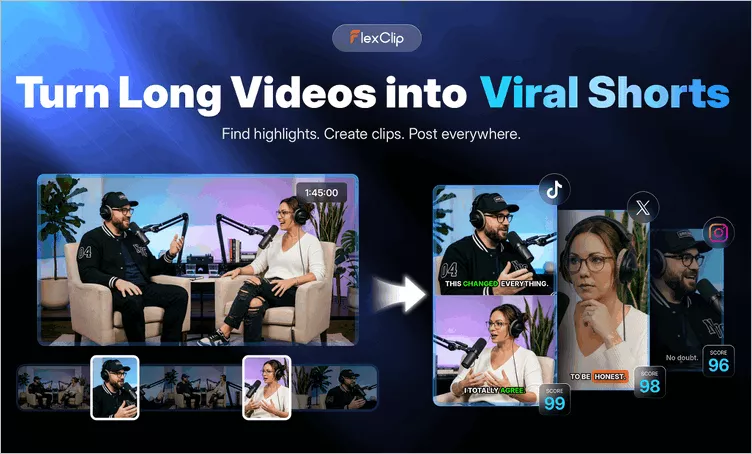
AI YouTube Video Resizer - FlexClip Long to Shorts Tool
Now, let's check the detailed steps below to learn how to resize a video for YouTube Shorts with FlexClip AI:
Step 1 Open FlexClip's Long to Shorts Maker
Click the Resize Video for Shorts with AI button above to access FlexClip's Long to Shorts Maker, then upload the video file you'd like to resize for YouTube Shorts. Here, you can directly convert a YouTube video for Shorts by pasting its link, upload a video from your local file or even import a video from your Google Drive.
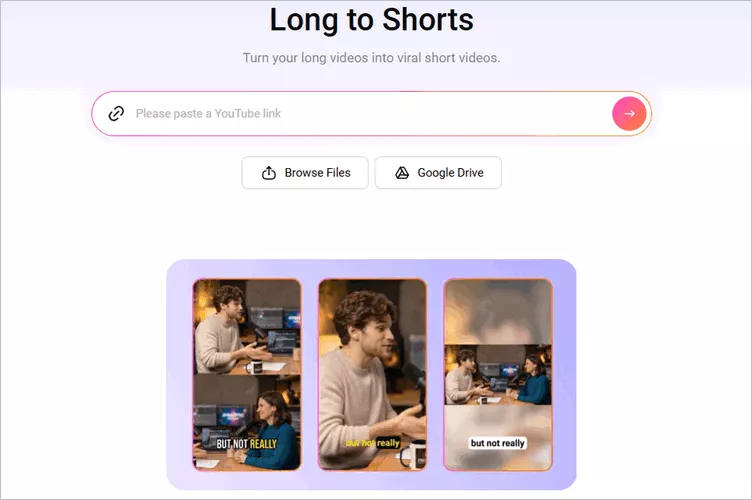
Resize Video for YouTube Shorts with FlexClip AI - Access FlexClip's Long to Shorts Maker
Step 2 Adjust the Setting for Your Shorts
Once loaded, FlexClip will automatically take you to the setting page, where you can adjust the settings and guide the AI to convert the video as you wish. Select the aspect ratio as 9:16 for Shorts format, and then choose the language, clip type, subtitle style and more as you need.
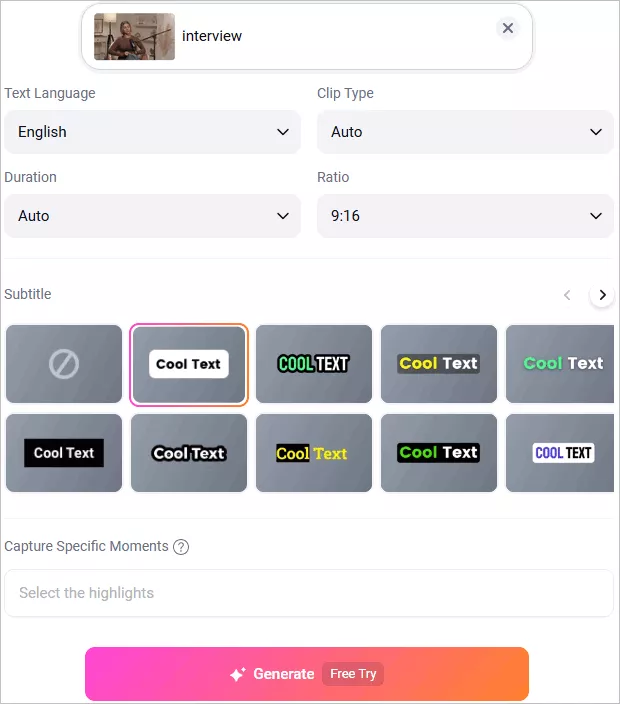
Resize Video for YouTube Shorts with FlexClip AI - Adjust the Long to Short Video Setting
Step 3 Resize Video for Youtube Shorts with One Click
Once selected, click the Generate button to start the conversion. FlexClip AI will analyze your video, reframe it, capture highlight moments, add auto subtitles, and turn your long video into multiple short clips that perfectly fit YouTube Shorts format.
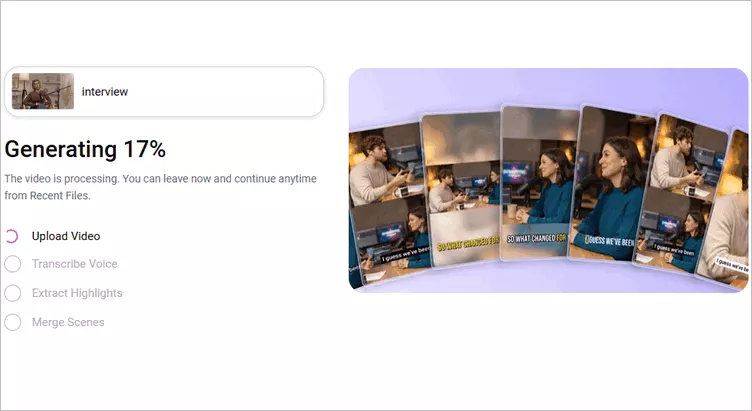
Resize Video for YouTube Shorts with FlexClip AI - Generate Viral Shorts with One Click
Step 4 Preview and Download the AI-Generated Clips
Once generated, you can preview all the short clips. If you need any adjustments for the AI-generated clips, you can click the trim button to access the full video transcript and select any portion from the transcript text to pick the clips that showcase the most impactful moments of your content and generate a new clip. Try to resize the whole video not some clips to fit YouTube Shorts aspect ratio? Just select the full transcript and ask AI to resize the full video for YouTube in one video instead of trimming into separate short clips.
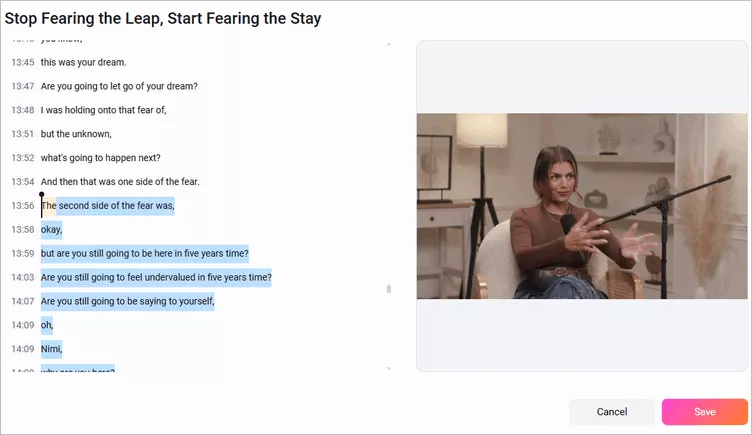
Resize Video for YouTube Shorts with FlexClip AI - Select and Trim Clip
Need more precise edits to prefect your video? Just click the Open in Editor button and take your video clips into the built-in editor and make edits freely.
Once satisfied, you can choose the clips you like to download or share it to YouTube Shorts directly. Click the download button to save the clip to your device; to publish your clip on YouTube Shorts, connect your YouTube accounts first, then use AI to write captions and share your clips to YouTube Shorts effortlessly.
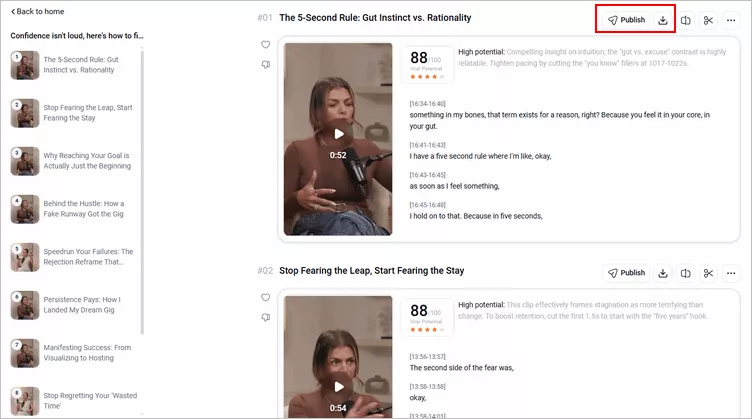
Resize Video for YouTube Shorts with FlexClip AI - Download & Share Clip
Method 2 Manually Resize Videos for YouTube Shorts
When you try to resize a video for Youtube Shorts, never forget FlexClip's built-in video editor! It offers preset aspect ratios, including 9:16(for YouTube Shorts, TikTok, Reels), 16:9(for YouTube), 1:1(for Instagram), etc., working perfectly as a video resizer to help you resize videos to fit YouTube Shorts with a 9:16 vertical ratio.
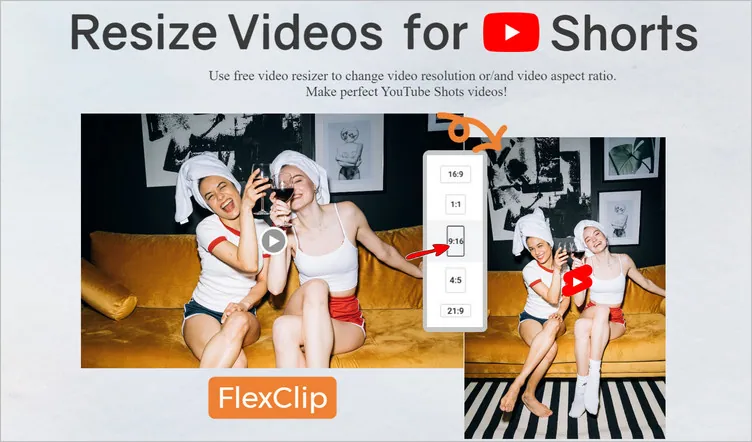
Online YouTube Video Resizer - FlexClip
The highlight part is that, in addition to resizing videos for YouTube Shorts and other social platforms, FlexClip also has a lot of powerful video editing tools and stunning effects for you to edit and perfect your video.
Here's how to resize a video for YouTube Shorts with FlexClip's built-in editor:
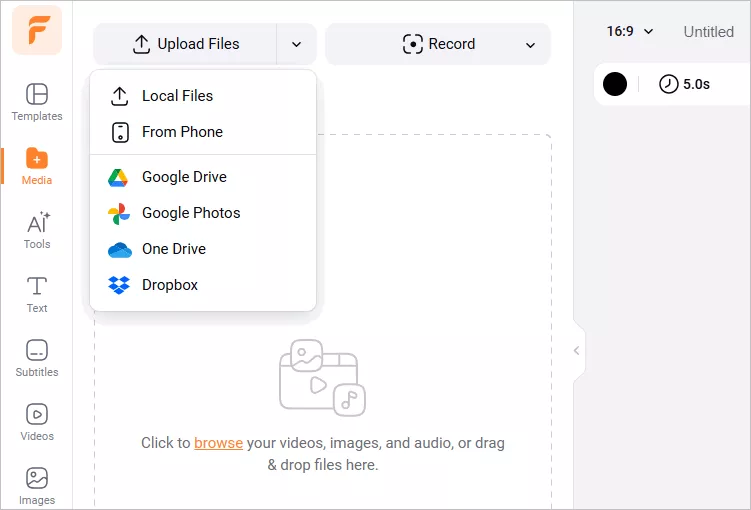
Resize Video for Shorts with FlexClip - Upload
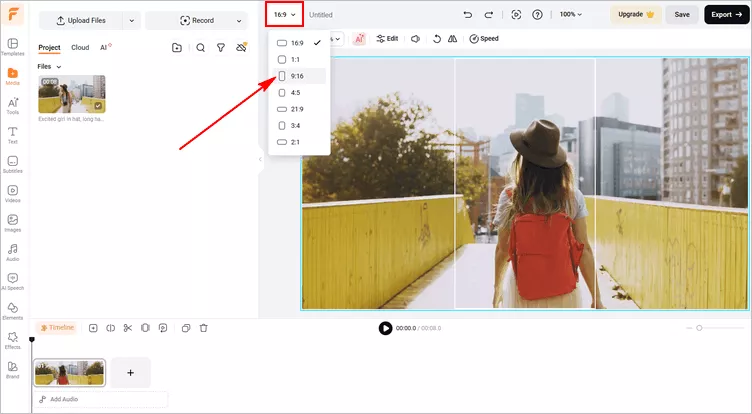
Resize Video for Shorts with FlexClip - Change Ratio
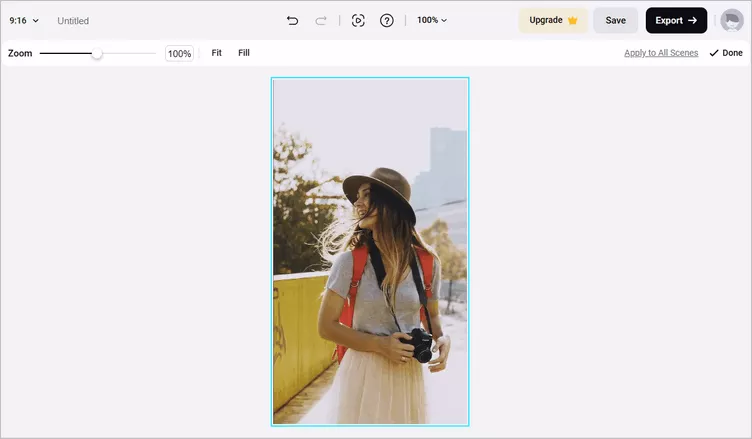
Resize Video for Shorts with FlexClip - Adjust
While you're in FlexClip video editor, you can use FlexClip's tools to make any other edits you'd like to your Shorts video, like add text animations, adjust video speed(normal speed change and speed curve), and split and trim the video to make it fit the length of YouTube Shorts, etc.
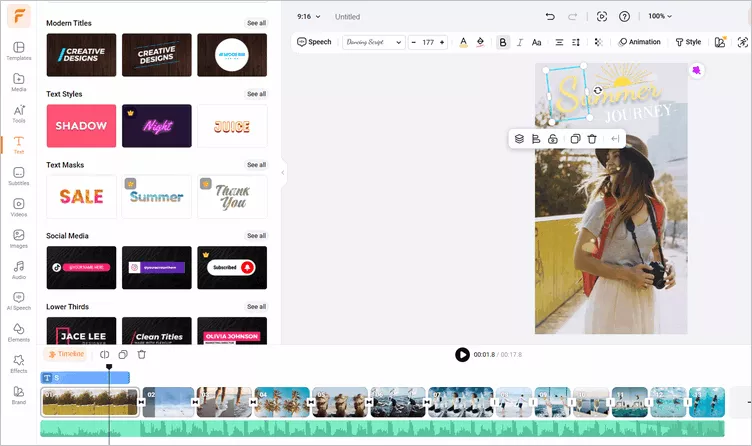
Edit Your Shorts Video with FlexClip
Pro Tip: We highly recommend you give the AI tools a try to automate your video edits, generate video script for your Shorts video with AI, easily turn your ideas into video in one click, and also effortlessly generate subtitles for your video with AI, create an AI voice to narrate your Shorts, and more, which will spark your creativity and help you create videos like never before.

FlexClip AI Tools Walkthrough
Part 2 Other YouTube Shorts Resizers for You to Resize Video for Shorts
Besides FlexClip, there are more other YouTube Shorts resizers you can try to resize videos to perfectly fit YouTube Shorts format. Check out for reference.
Clideo
Online Video Resizer by Clideo is also a perfect solution for resizing videos for YouTube Shorts. To resize a video at Clideo, you can choose a social media preset, including Instagram, YouTube(16:9, 4:3), Twitter, Snapchat, Linkedin, Pinterest, etc., or set custom dimensions for your desired one, such as the 9:16 vertical format for YouTube Shorts.
When you resize and crop a video for YouTube Shorts at Clideo, you can choose how to crop the video - fit the whole video into the chosen frame and change the background color, or fill the frame entirely to avoid leaving the blank space.
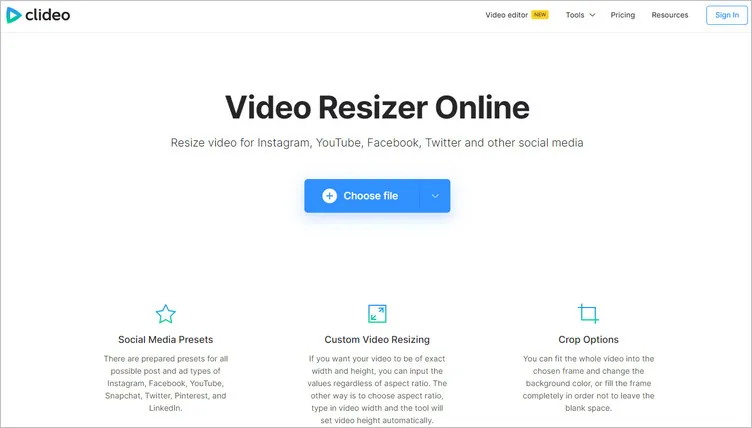
Online YouTube Video Resizer - Clideo
If you want to resize videos for YouTube Shorts online with Clideo, use the following steps:
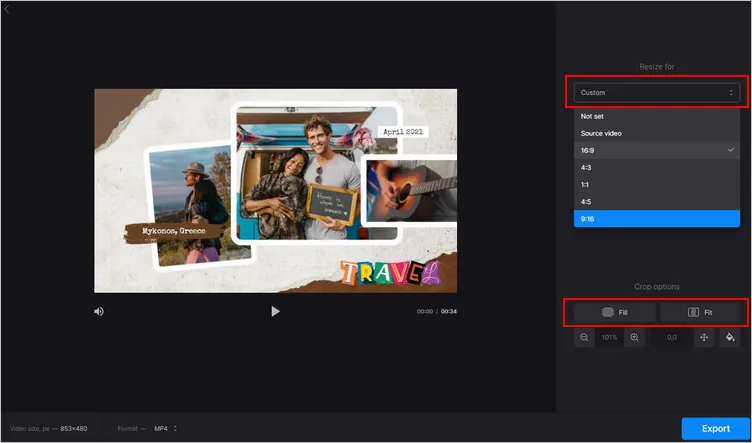
Resize Video for Shorts with Clideo - Resize
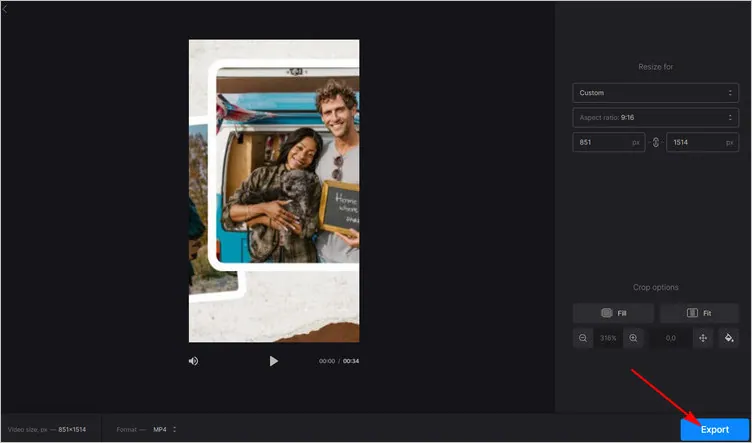
Resize Video for Shorts with Clideo - Export
LightX
LightX's video resizing tool allows you to resize the video for YouTube Shorts. It is an aspect ratio converter that edits and resizes your videos perfectly for social media platforms like YouTube Shorts, Instagram, TikTok, Facebook, etc. It gives you preset sizes for different platforms that save you a great amount of time and effort.
LightX also gives you a bunch of editing tools and features to edit your resized video to its best. You can add stickers, music, text, and more to your videos. Feel free to try LightX’s range of video editing tools to make your videos look polished.
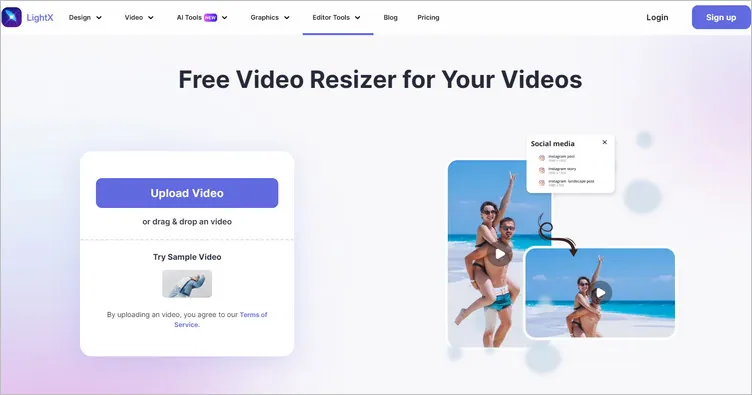
Online YouTube Video Resizer - LightX
Here's how you can use it to resize your videos to fit YouTube Shorts ratio:
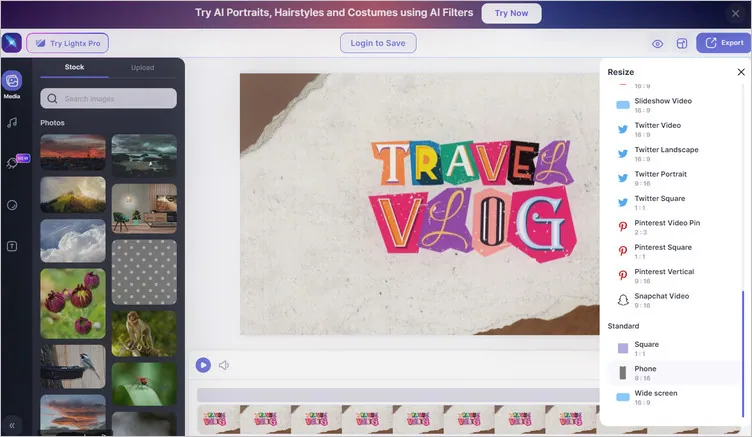
Resize Video for Shorts with LightX - Resize
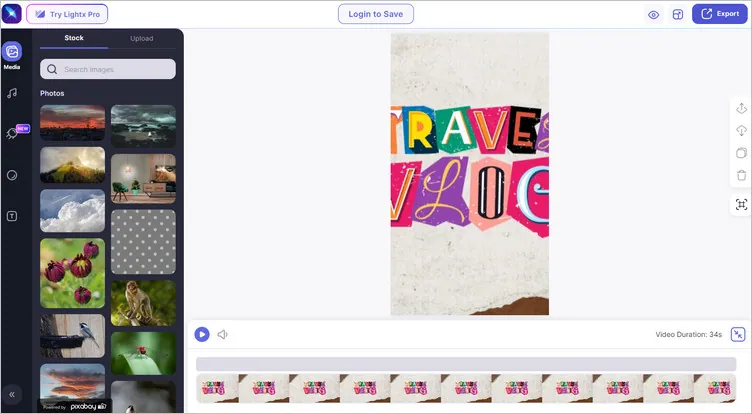
Resize Video for Shorts with LightX - Download
Kapwing
Then, we have Kapwing for you to resize videos for YouTube Shorts. Kapwing's Resize Video tool allows you to convert videos from one size to another, like a landscape to vertical video for YouTube Shorts, with several background options, which lets you create as many versions as you need for as many social media platforms as you want.
More than just a video resizer to resize video clips to fit any platform, Kapwing offers 100+ video tools to help you make your video project effective and engaging. At Kapwing, you can change videos from landscape to portrait and add final touches like special effects, video transitions, and background music all in one place.
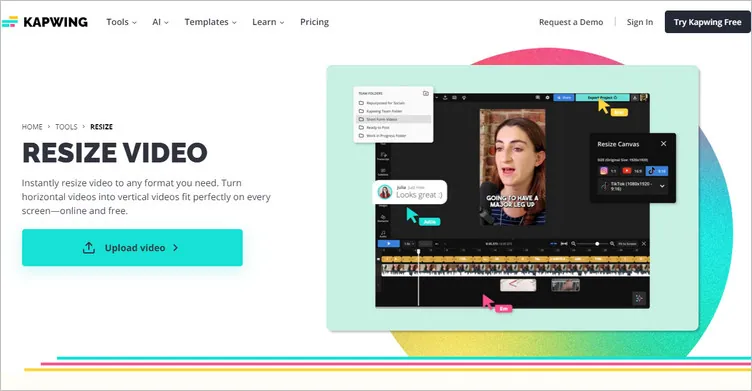
Online YouTube Video Resizer - Kapwing
You can resize a video for YouTube Shorts at Kapwing with these steps:
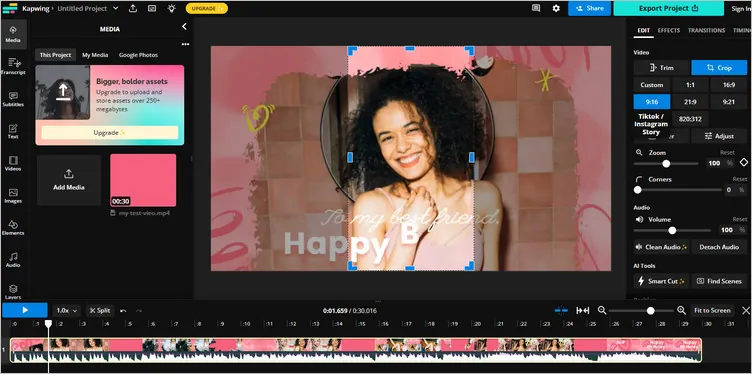
Resize Video for Shorts with Kapwing - Crop
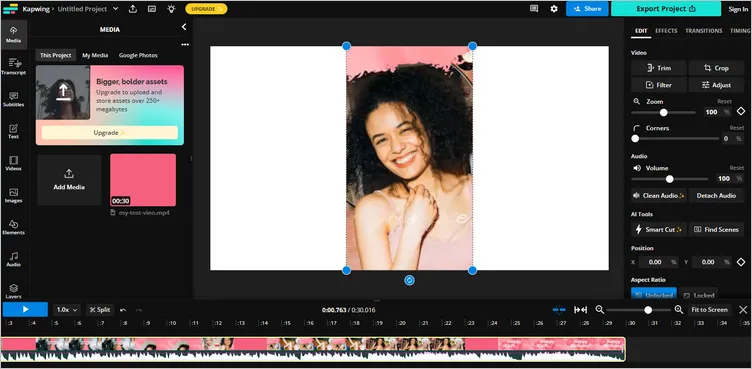
Resize Video for Shorts with Kapwing - Export
Zubtitle
Another great way to quickly and easily resize your video for YouTube Shorts is with Zubtitle. You can use its quick resizing and cropping tools to crop and change your video's aspect ratio to match any social platform, including vertical format for YouTube Shorts, square video for Instagram, and the standard widescreen video for YouTube, and more.
Besides, Zubtitle has evolved into an all-inclusive video repurposing tool to help you add subtitles to video, trim, and repurpose it with a few clicks, allowing you to optimize your video for YouTube Shorts and any other social platforms.
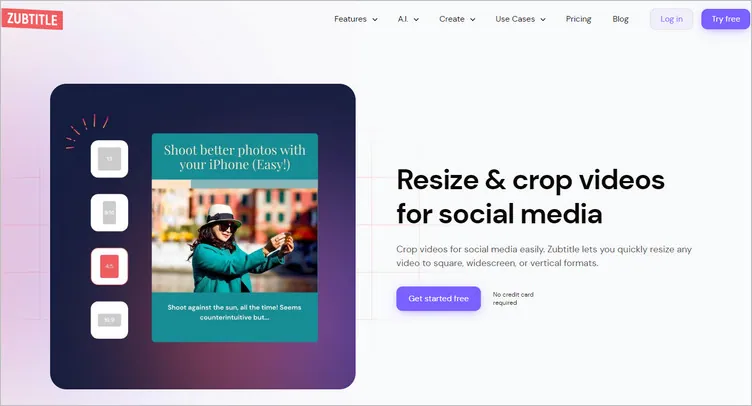
Online YouTube Video Resizer - Zubtitle
Just follow the steps below to resize and crop a video for YouTube Shorts with Zubtitle:
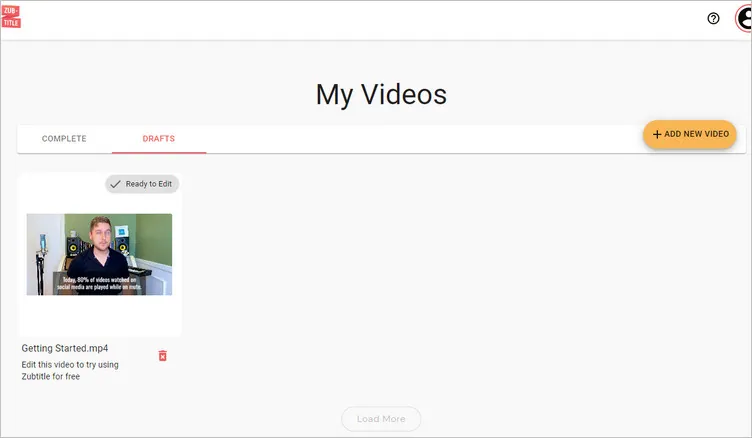
Resize Video for Shorts with Zubtitle - Add Video
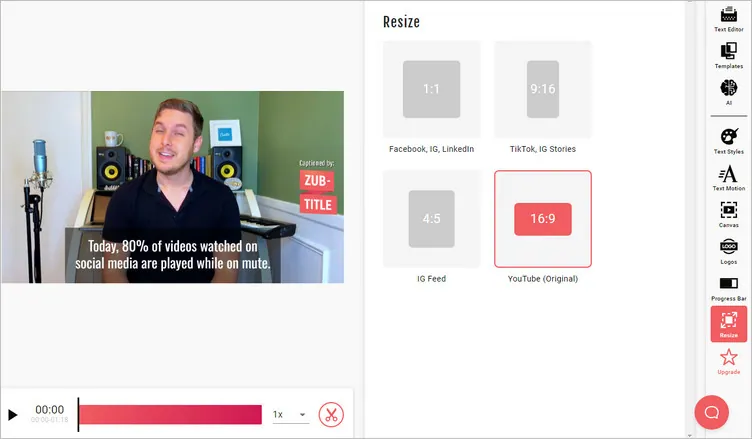
Resize Video for Shorts with Zubtitle - Resize
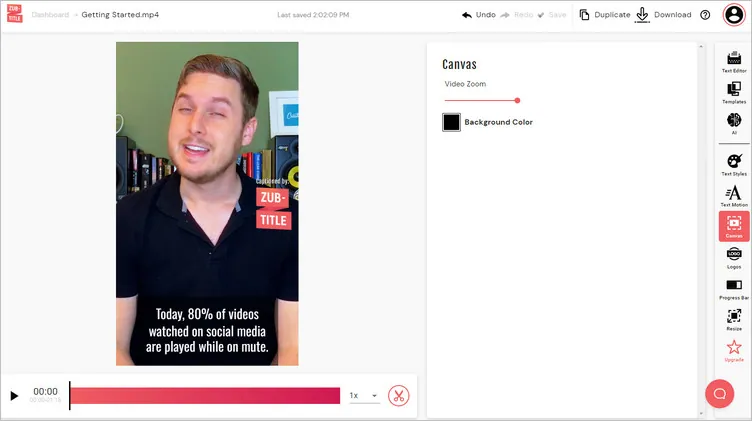
Resize Video for Shorts with Zubtitle - Zoom
Final Words
These are the five best online YouTube Shorts Resizers and detailed steps on resizing and cropping videos for YouTube Shorts with each of them. What's your favorite one? Which do you think is the best? Just try it out now! If you find this blog helpful, please share it with others.




FlexClip AI Video Maker
Reach professional-quality videos faster with easy editing tools, templates, and smart AI.
Start Now for Free
Hot & Trending
-

Best Ways to Find Music in YouTube Videos
-

Instagram Story Video Quality Bad After Upload? Fix It!
-

How to Repost Video on TikTok & How to Remove TikTok Repost
-

Improve Video Quality Online: 3 AI Video Quality Enhancers You Can't Miss
-

4K Convert to HD 1080p without Watermark: Best 4k Video Converters
-

Best 8 Free Video Editors - No Download Required
-

Top 13 Birthday Video Makers with Music and Effects Free
-

How to Search Filters on TikTok & Use a Filter You See - TikTok Filter Guide